
A silence mutes the notifications of alert instances whose labels match all of its matchers, between its start and its end. Use one for planned maintenance, or to stop repeats while you work on a known problem.
- Silences mute notifications only. Rules are still evaluated, and instances still go pending, fire and resolve. The console shows matching instances as Silenced.
- They apply to every rule in the project whose instances match.
testnotifications, a rule’serrornotifications and email confirmations are never silenced.
{
  "matchers": [
    { "label": "service", "op": "=", "value": "api" },
    { "label": "severity", "op": "=~", "value": "warning|info" }
  ],
  "startsAt": "2026-10-14T02:00:00Z",
  "endsAt": "2026-10-14T04:00:00Z",
  "comment": "Database maintenance"
}| Field | Value |
|---|---|
matchers |
1 to 32 matchers, all of which must match. Required |
startsAt |
When it starts muting (RFC 3339). Default now |
endsAt |
When it stops: after startsAt, in the future, and at most 30 days after startsAt. Required |
comment |
Why, 1 to 1,000 characters. Required |
The answer adds id, slug (sil_…), state (scheduled, active or expired), and
createdBy, who created it.
Matchers
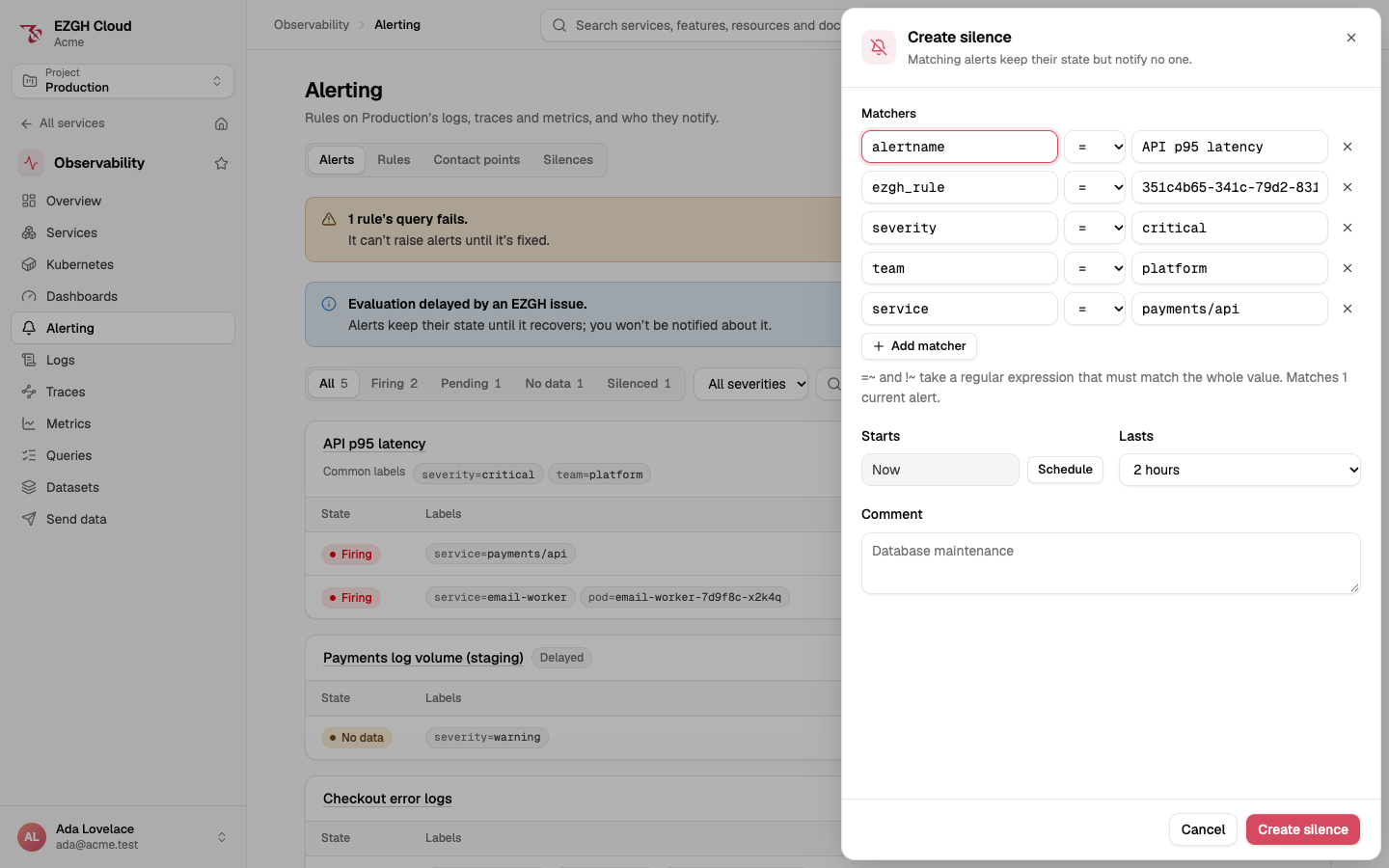
Matchers work as Alertmanager’s:
op |
Matches when the label’s value |
|---|---|
= |
Equals value |
!= |
Doesn’t equal value |
=~ |
Matches the regular expression value, anchored at both ends (RE2) |
!~ |
Doesn’t match the regular expression value |
- A label an instance doesn’t have counts as empty, so
team!="payments"matches instances without ateamlabel. - Regular expressions match the whole value:
stagdoesn’t matchstaging;stag.*does. - At least one matcher must not match the empty string, so a silence can’t mute the whole
project by accident:
severity=~".*"alone is refused. - Match on the labels every instance has: the rule’s static
labels, its series or group labels,
alertname(the rule’s name) andezgh_rule(the rule’s ID).alertname="API p95 latency"silences one rule.
When a silence starts and ends
- A notification is checked against the active silences when it’s created and again just before it’s sent, so a silence created while a notification waits for a retry still mutes it. Instances that match are left out; a notification left with none is marked Silenced in the delivery log.
- A resolved instance is left out while a silence matches it, and also when its firing was silenced, so you aren’t told that something you never heard about has resolved.
- When a silence ends (its
endsAtpasses, it’s expired, or its matchers change), instances whose notification it withheld (their firing, or a repeat) and that are still firing (or without data) are notified at the next evaluation. Instances it never withheld a notification from aren’t notified just because it ended; they repeat on theirrepeatIntervalas usual. - A rule’s history records when a silence first withholds a notification for an instance.
Changing and expiring
Silences aren’t deleted:
- A scheduled silence can change any field. An active one can change only
endsAtandcomment. An expired one can’t change: create a new one. - Expire ends a silence now (
POST silences/<ID>/expire). Expiring one that has already ended changes nothing. - Expired silences are listed for 30 days, then removed.
In the console
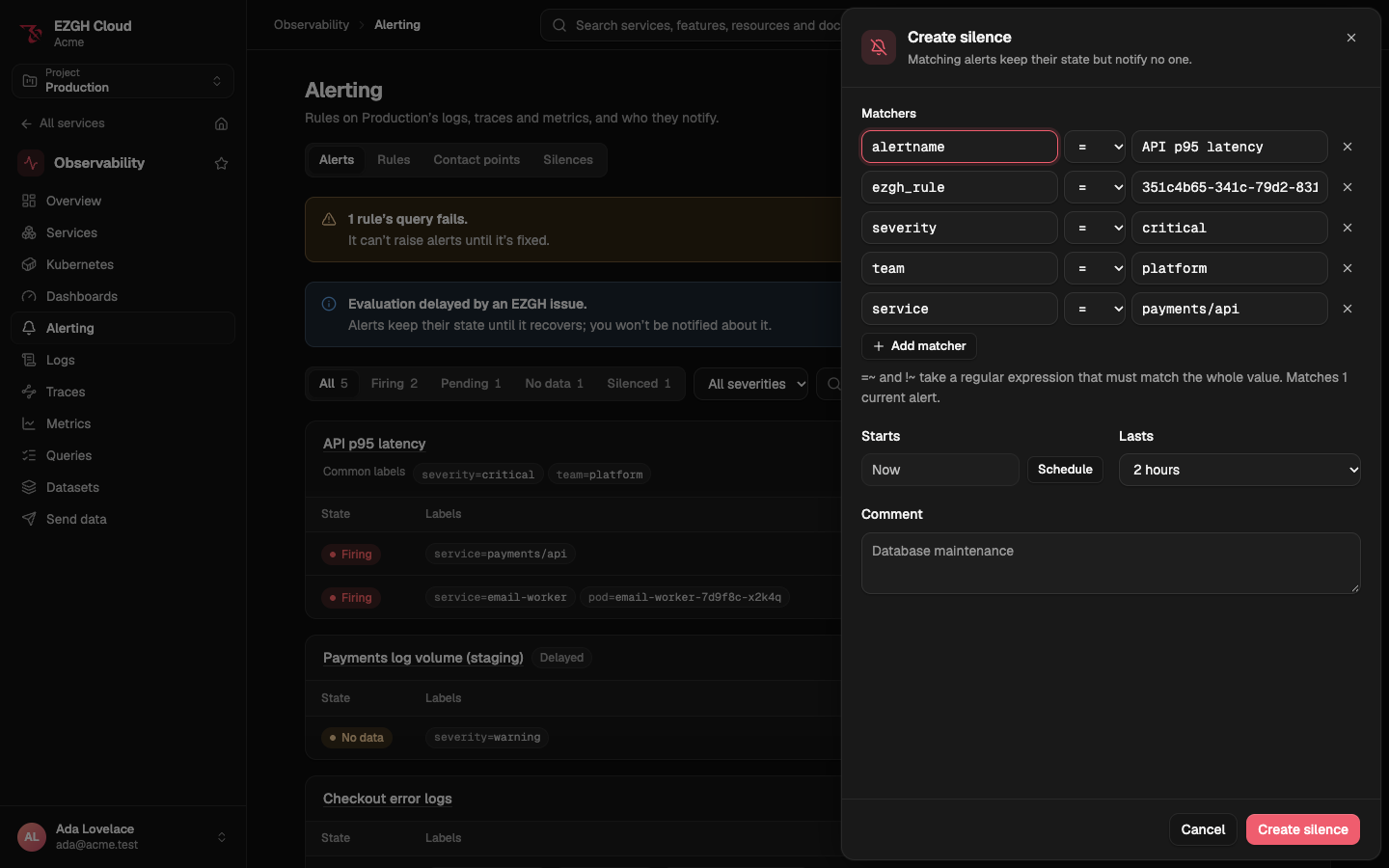
Silence… on an alert opens Create silence with matchers filled in from the alert’s labels: remove the ones you don’t need, so the silence covers what you mean, not just that one instance. The sheet shows how many current alerts the matchers match. Choose when it starts (Now or Schedule), how long it Lasts, and a comment.
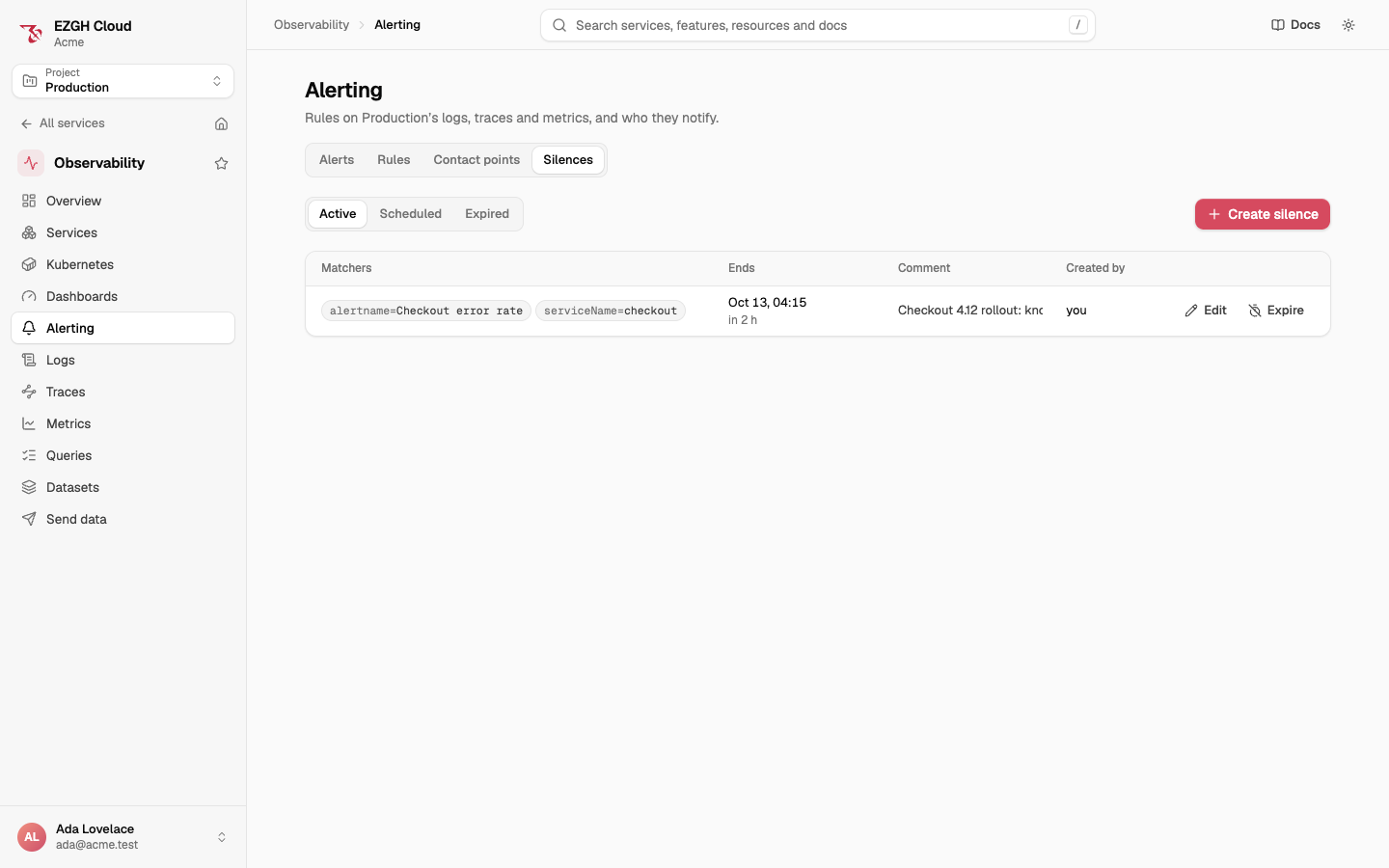
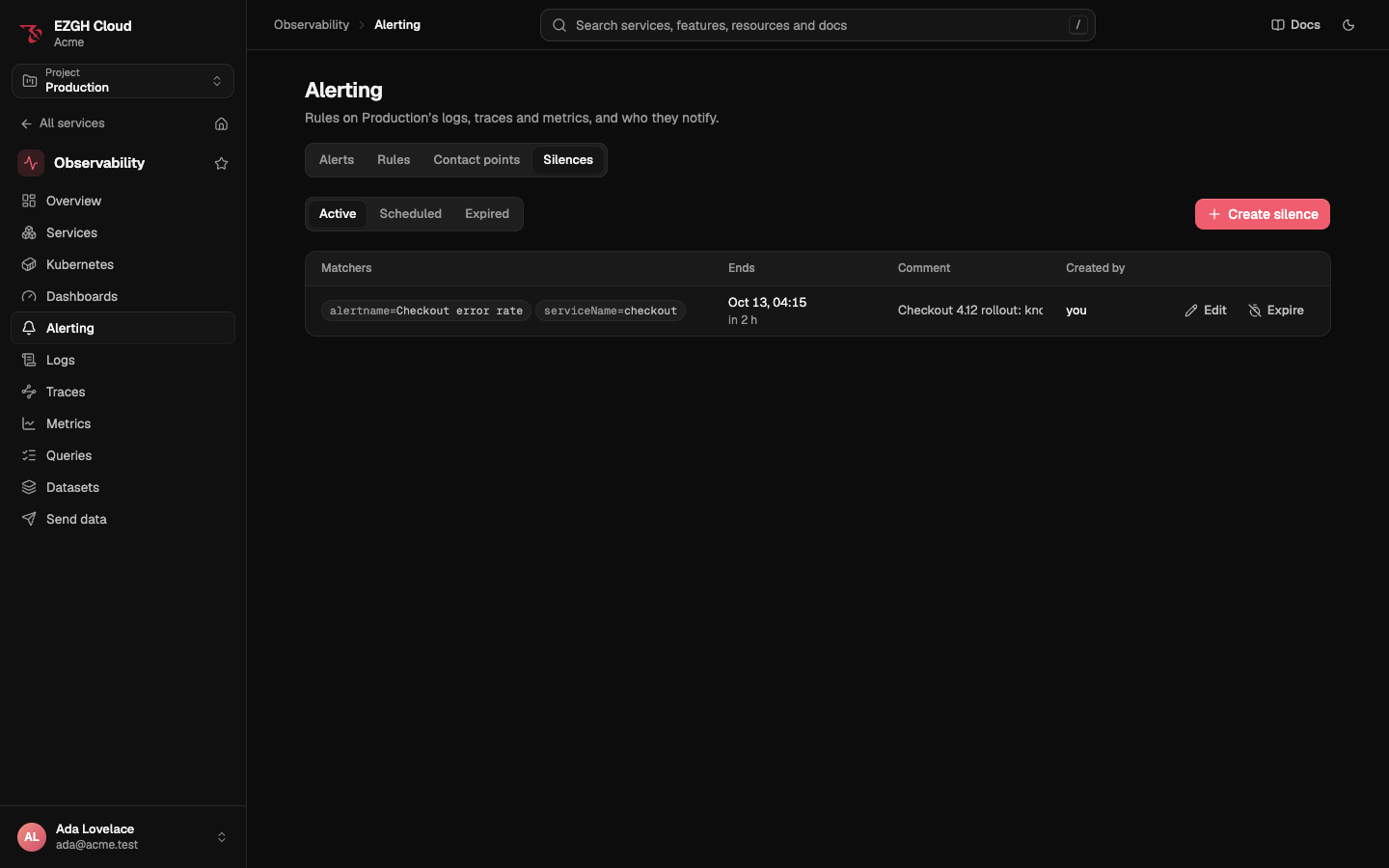
Observability > Alerting > Silences lists Active, Scheduled and Expired silences with their matchers, end, comment and creator. Edit changes one. Expire (Cancel for a scheduled silence) asks you to confirm.
From the CLI and the API
ezgh obs silences create --matcher service=api --duration 2h --comment "Database maintenance" --project web
ezgh obs silences create --matcher alertname="API p95 latency" --matcher 'env!~stag.*' \
  --starts 2026-10-14T02:00:00Z --ends 2026-10-14T04:00:00Z --comment "Planned failover" --project web
ezgh obs silences list --state active --project web
ezgh obs silences expire sil_k3f9a0x2m7qp --project web
--matcher is name=value, name!=value, name=~regex or name!~regex. A silence starts now
or at --starts, and ends at --ends or after --duration. Silences are named by ID or slug. ezgh obs silences lists every flag.
Under /v1/organizations/<organization ID>/projects/<project ID>/obs/:
| Operation | Request |
|---|---|
| List silences | GET silences, newest first; ?state=active, scheduled or expired |
| Create a silence | POST silences |
| Get a silence | GET silences/<ID> |
| Change a silence | PATCH silences/<ID>; matchers is replaced whole |
| Expire a silence | POST silences/<ID>/expire |
A silence that breaks a rule above is 400 invalid_request, with each problem in issues.
Active and scheduled silences count against the project’s quota of 500 (Limits).